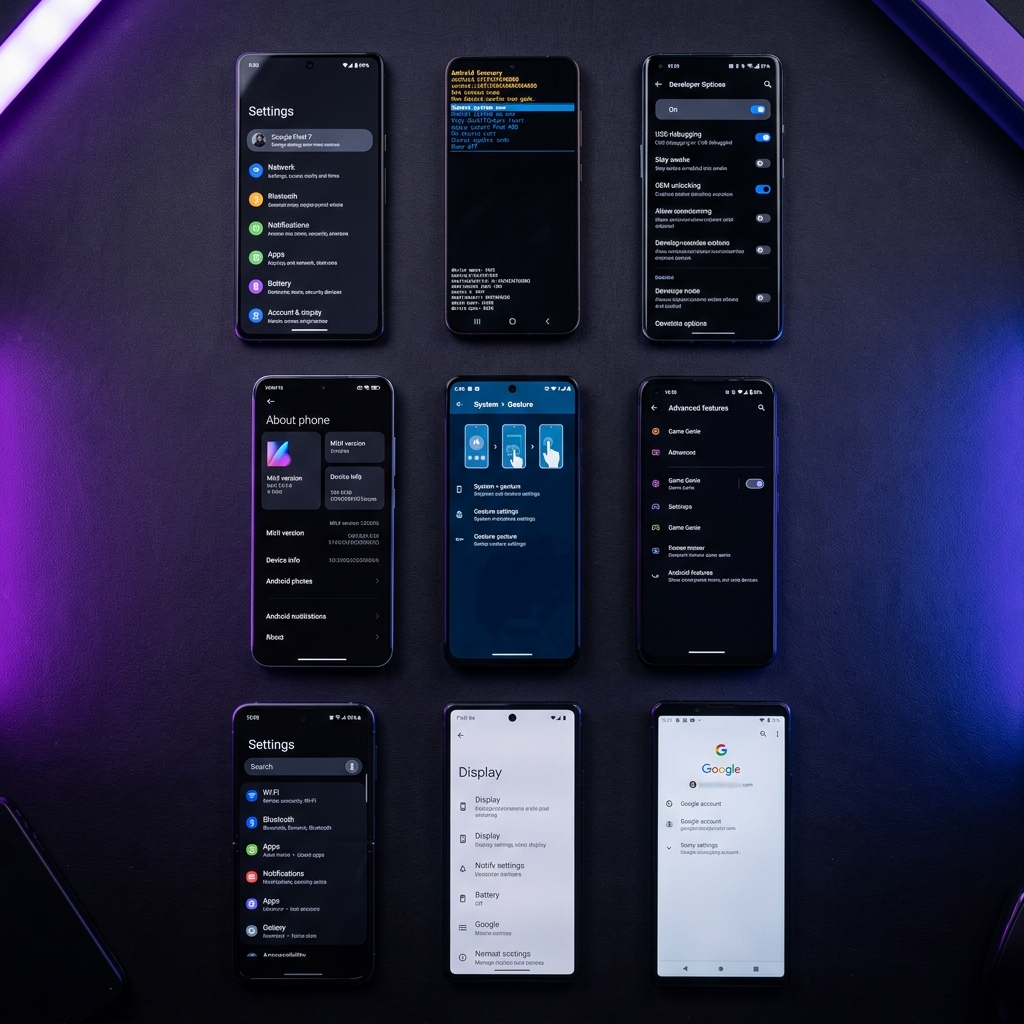
Oppo's ColorOS 14 handles Factory Reset Protection the same way Google specifies for all Android 14 devices, but the Smart Assistant panel that ships on the A78 and A98 gives you an extra way into the browser during setup that isn't present on stock Android. This guide walks through that method first, then a PC-based fallback for devices where Smart Assistant has been disabled.
What You'll Need
- Oppo A78 or A98 (ColorOS 14 / Android 14) with an active FRP lock
- A stable Wi-Fi connection
- A Windows PC and USB cable (Method 2 only, involves data loss)
Method 1: Smart Assistant Method (No Data Loss)
This method uses ColorOS's Smart Assistant panel, which is often still reachable from the lock/setup screen before Google verification is enforced.
- Step 1: Connect to Wi-Fi – On the setup screen, connect to Wi-Fi and continue to the Google account verification step.
- Step 2: Open Smart Assistant – Swipe in from the screen edge (or tap the floating Smart Assistant icon) to open the quick panel with widgets.
- Step 3: Reach the browser – Tap a widget such as weather or news that opens a full webpage in Oppo's default browser.
- Step 4: Download the FRP Bypass APK – In the browser, go to the BKSmartphone tools page and download the FRP Bypass APK. Install it after enabling "Install from Unknown Sources".
- Step 5: Disable Google verification – Open the installed app and disable Google Account Manager and clear Google Play Services data.
- Step 6: Complete setup – Return to the setup wizard, skip Google sign-in, and finish with a new account.
Method 2: Reset Special Format (PC, Erases Data)
If Smart Assistant isn't reachable on your build, Oppo's recovery-mode Reset Special Format clears FRP at the cost of wiping all local data.
- Step 1: Power off the device – Turn off the Oppo phone completely.
- Step 2: Boot into recovery mode – Hold Volume Up + Power until the ColorOS recovery menu appears.
- Step 3: Choose Reset Special Format – Navigate with the volume keys to "Wipe Data" > "Reset Special Format" and confirm with the Power button.
- Step 4: Reboot – Once the format finishes, select "Reboot" from the recovery menu.
- Step 5: Complete setup – The device will boot without the previous FRP lock. Complete setup with a new Google account.
Troubleshooting
Frequently Asked Questions
Does this Oppo FRP bypass work on ColorOS 14?
Yes, both methods in this guide are verified on ColorOS 14 (Android 14) on the Oppo A78 and A98. Older ColorOS 13 devices can also use Method 1.
Can I bypass FRP on Oppo without a PC?
Yes. Method 1 uses the Smart Assistant / Google feedback loophole entirely on the phone. Method 2 (Reset Special Format) requires a Windows PC and is only needed as a fallback.
Will bypassing FRP on my Oppo delete my apps or files?
Method 1 does not touch your storage. Method 2 does trigger a low-level format and will erase all local data, so only use it if Method 1 has already failed and you accept the data loss.
Conclusion
The Smart Assistant method clears FRP on most Oppo A78 and A98 units without touching your data, and Reset Special Format is there as a last resort. For other budget Android devices, see our Samsung A-series guide or browse the full tutorial library.